Its late after a long workday Europe time, can some one here tell me how to transfer a complete setup of a chart or a bind with several charts and all the indicators from for example MNQ U6 to MNQ Z6 one one sweep on Optimus Flow / Qantow (hope I can name this here?)
Hello @RoForex,
Thanks for your question and welcome back to the Optimus futures community forum!
The best method of organization on the Optimus Flow Futures trading platform is through “templates” or by saving specific features as a default. You can save your chart as a template, which will save all the customized settings and indicators that you have applied to that chart - you can then open that template to easily change the symbol. You can also do the same for "defaults, making it so that every single time you open a specific panel on your platform, such as a chart, that chart opens the same way every time with your indicators and settings already applied.
To save and organize your workspace as a template:
First, configure your charts/settings or bind to your liking.
Once you have everything set the way you’d like, click on the hamburger menu icon in the top left of your chart (1) and then click “Save as template” (2):
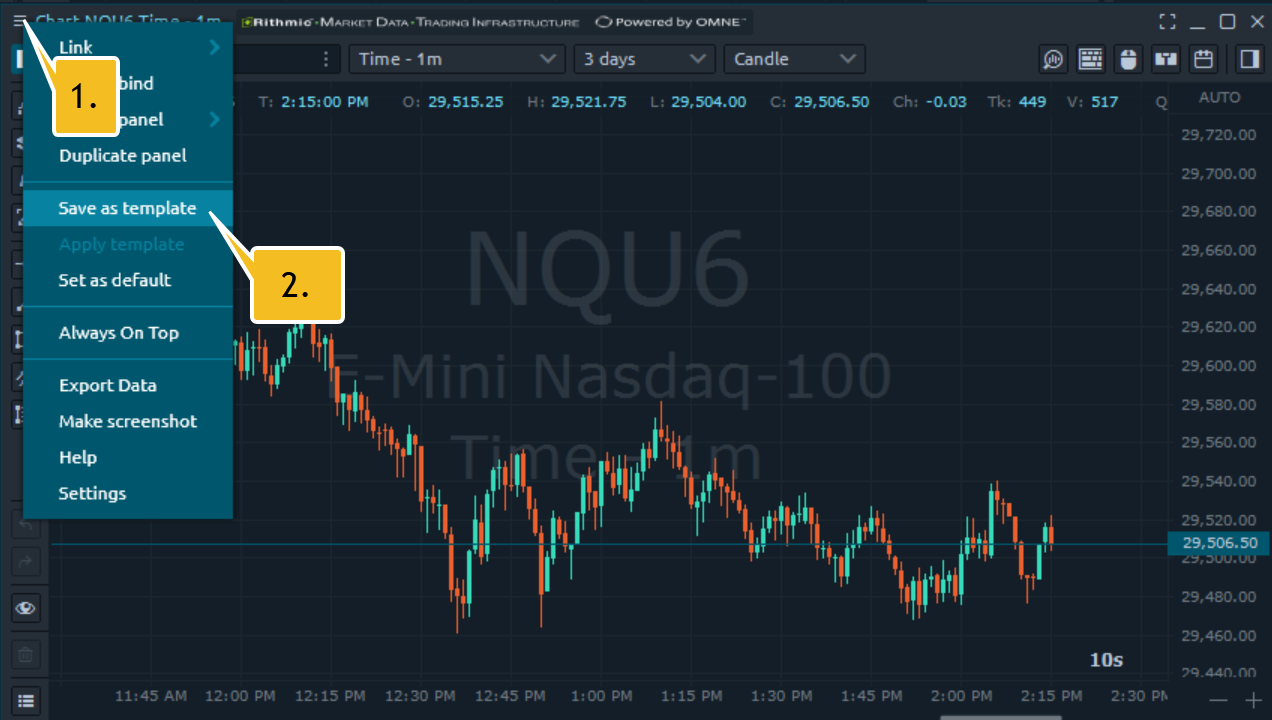
When you click save template, choose a name for that template and a short code, then create.
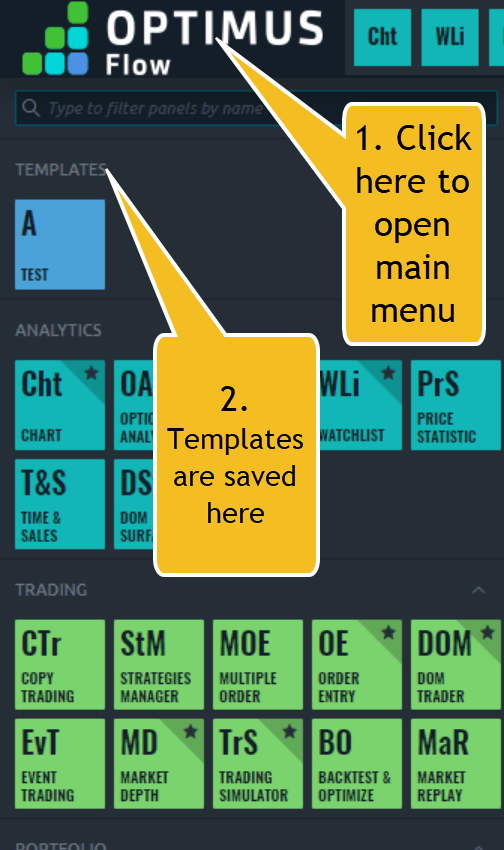
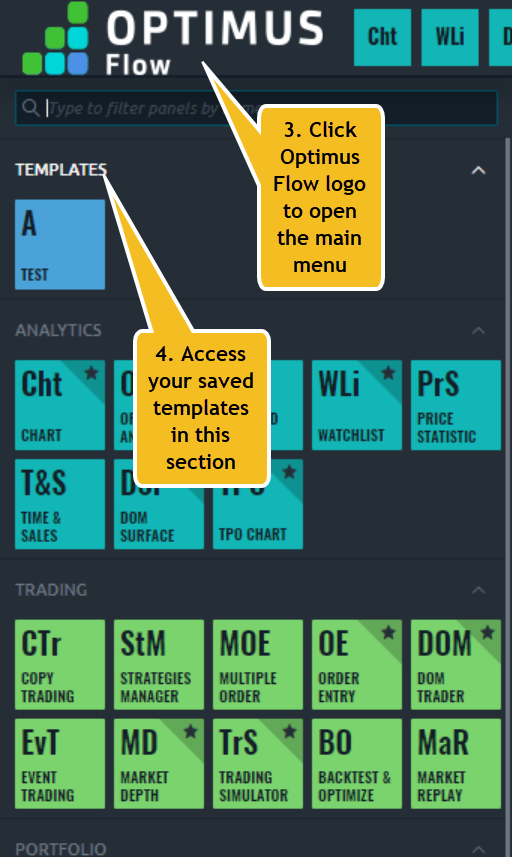
You can now access all of your templates in a new “templates” section of your main menu. Click the main menu, which is the Optimus Flow logo (1) and then you should see your template saved in the new section that opens (2).
Any new chart you open will have the same exact settings, indicators and colors applied as this template - you can then change the symbol on that template. Alternatively, if you have a bind already configured the way you’d like, then save the bind as a template instead. You can then open that bind as many times as you’d like through the template and tweak the symbol within that bind instead.
Alternatively, you can also accomplish this by saving your chart as a default. To save panels as defaults:
Similar to what you did above, first customize your chart the way you’d like. Once you have everything set the way you’d like, click the menu icon of your chart (1) and then click “set as default” (2):
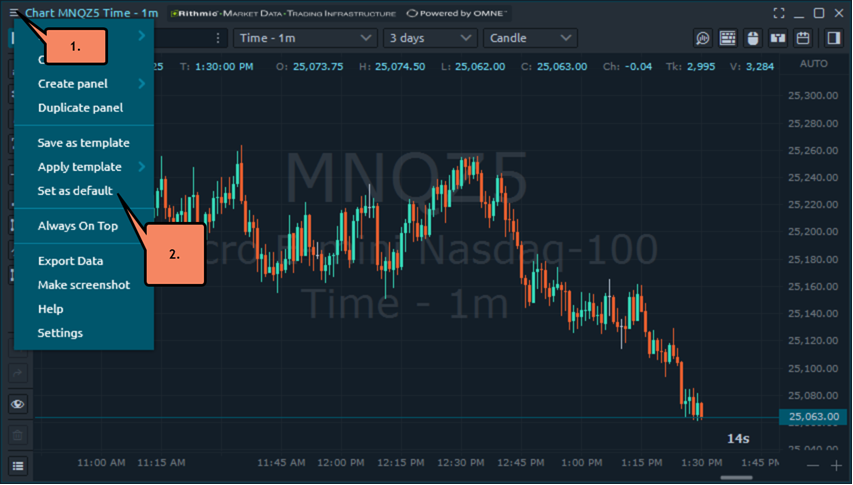
Once you save your chart as a default, when you click on the CHT (chart) button, any new chart you open will have the same exact settings and colors applied. Please keep in mind though that you can only set defaults for a dedicated panel, like a chart or DOM - you cannot save binds as defaults.
We hope this helps you organize your charts and workspace more easily on Optimus Flow! If you have any other questions, please let us know.
Best,
Optimus Futures Support
Dear Optimus Support,
Thanks for replying, I am late replying had a busy week, I also contacted Qantower.
Only I am not sure if it works for bind, I tried it, but it is not so straightforward. As said above that binds can’t be saved as template.
I had a bind with 3 personalized screens and the order entry, I managed to change the personalized MNQ U6 screens to MNQ Z6 screen by screen one by one, its not perfect but at least I can change all setting from MNQ U6 to MNQ Z6. ( must figure out how to do it in one sweep, oh I see in above answer that a bind can’t be saved as default or template)
Best regards,
Hello @RoForex,
You are welcome.
We can confirm that binds can be saved as templates on Optimus Flow.
Once you have configured your bind, in the top left of your bind, click the “hamburger menu” icon to open the bind menu (1):
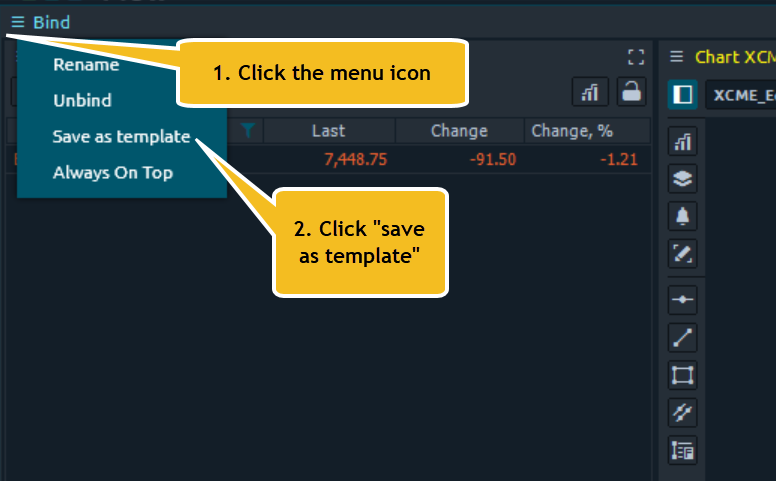
Within the bind menu, click 2. “save as template”.
Choose a custom name for your template and a short code, then click save:
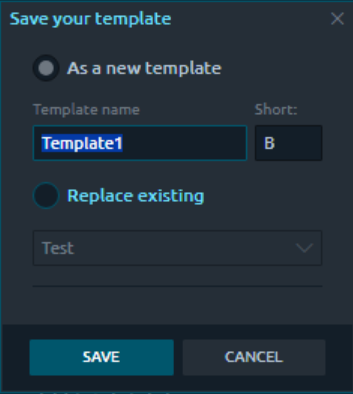
Once you save your template and bind, click the Optimus Flow logo (3) to open the main menu of the Optimus Flow trading platform. From there, navigate to the new “templates” section (4) at the top of your main menu to access and open your saved templates:
Best,
Optimus Futures Support